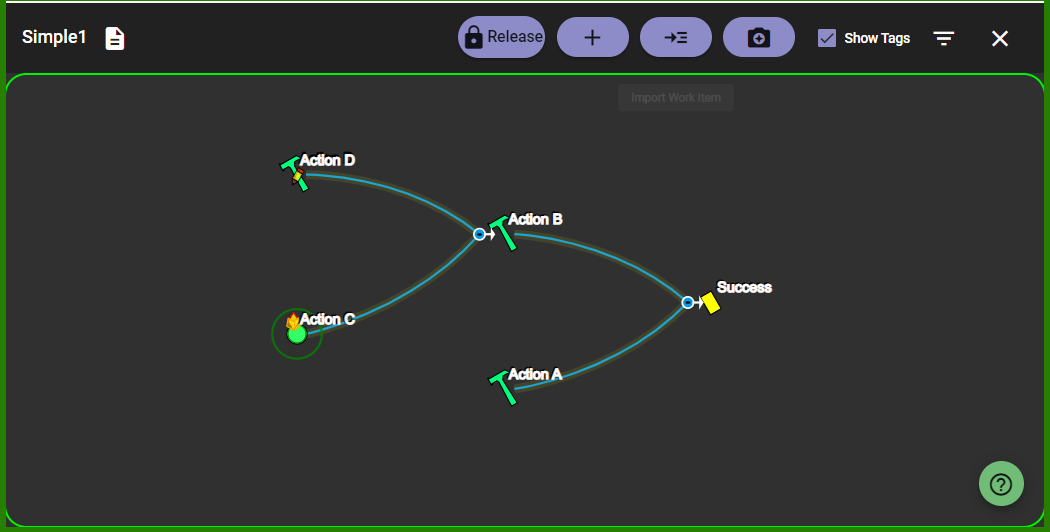
TOUCHSCREEN NOTE: Some interactive features may not currently be available for touchscreen devices. Please consider using a mouse and keyboard if available.
Diagraming User Interface
Mission diagrams can be created and adjusted quickly through a variety of interface features.
Workitem Interaction
|
Create new unconnected Workitem
|
Click the Create Workitem button at top of display.
|
|
Create new connected Workitem
|
Hold the ALT key and RIGHT CLICK on an existing connected workitem.
|
|
View/Edit existing Workitem properties
|
RIGHT CLICK on an existing workitem to get the Edit Workitem dialog. Alternatively, DOUBLE CLICK on the title of the workitem.
|
|
Delete existing Workitem
|
Click the Destroy button on the Edit Workitem dialog.
|
Fast Connection Steps
|
Connect workitems together
|
Hold ALT key and drag green line.
|
|
Delete existing connection
|
Hold SHIFT key and drag red line.
|
|
Replace connections with a new connection
|
Hold SHIFT and ALT keys and drag purple line.
|
Alternate Connection Steps
|
Connect workitems together
|
LEFT CLICK existing workitem and hold until a green symbol appears. Then drag green line.
|
|
Delete existing connection
|
RIGHT CLICK on the line then press the DELETE key or the BACKSPACE key to remove it.
|
Other
|
Detangle
|
Hold CTRL key and then RIGHT CLICK existing target workitem to detangle connections
pointing toward that workitem. Alternatively, drag the root workitem of the tree.
Apply several times until you see results you want.
|
|
Save Layout
|
Click the Save Layout button if you would like the relative positions of the workitems to be preserved for next time.
|
|
Release Editor Lock
|
Click the Release Editor Lock button if you would like to let someone else edit the mission diagram.
|
|
Workitem Dimming
|
Click the Focus Work drop-down control found at the top of the screen and select the workitem statuses that matter most to you. The others will be dimmed on the display.
|
|
Show and Hide Workitems
|
Click the + symbol on the connector to show hidden workitems. Click the - symbol on a connector to hide workitems.
|
|
Zoom In and Zoom Out
|
Use the mouse wheel to zoom in and out. To restore the display back to default, click the Reset
Display text when it appears at the top of the diagram.
|
General Tips
|
Workitems
|
The mission diagram is composed of connected workitems. Different icons give a quick visual clue of the expected effort or complexity.
|
Effort
|
Type
|
|
Highest
|
Epic
|
|
Moderate to High
|
Story
|
|
Moderate or Unassessed
|
Goal
|
|
Low
|
Task
|
A Mission type suggests you will model the details in another mission diagram as an extension of the current mission. A mission accent ( link to other mission ) tells you detail for this workitem is modeled in another mission.
|
|
Mission Diagram
|
All your workitems lead to your mission goal.
- The mission goal is found at the far right of the diagram.
- Complete your workitems from left to right.
- Reconfigure your diagram as mood and insight strike you so you are always working your way toward the final mission goal.
|
|
Focus Work
|
In the upper right click the filter icon  to select the workitem statuses that you want to focus on. A good default is to focus on everything except completed and abandoned. to select the workitem statuses that you want to focus on. A good default is to focus on everything except completed and abandoned.
The workitems that are not selected in the focus list will appear dimmed when part of a displayed branch; and the entire branch will disappear when all the members of that branch are not part of the focus.
|
Missions in Missions