
< Go Back to Topics Menu

Mission Properties Dialog

You can set the mission properties when creating a new mission, or when viewing the properties of a mission you are editing.
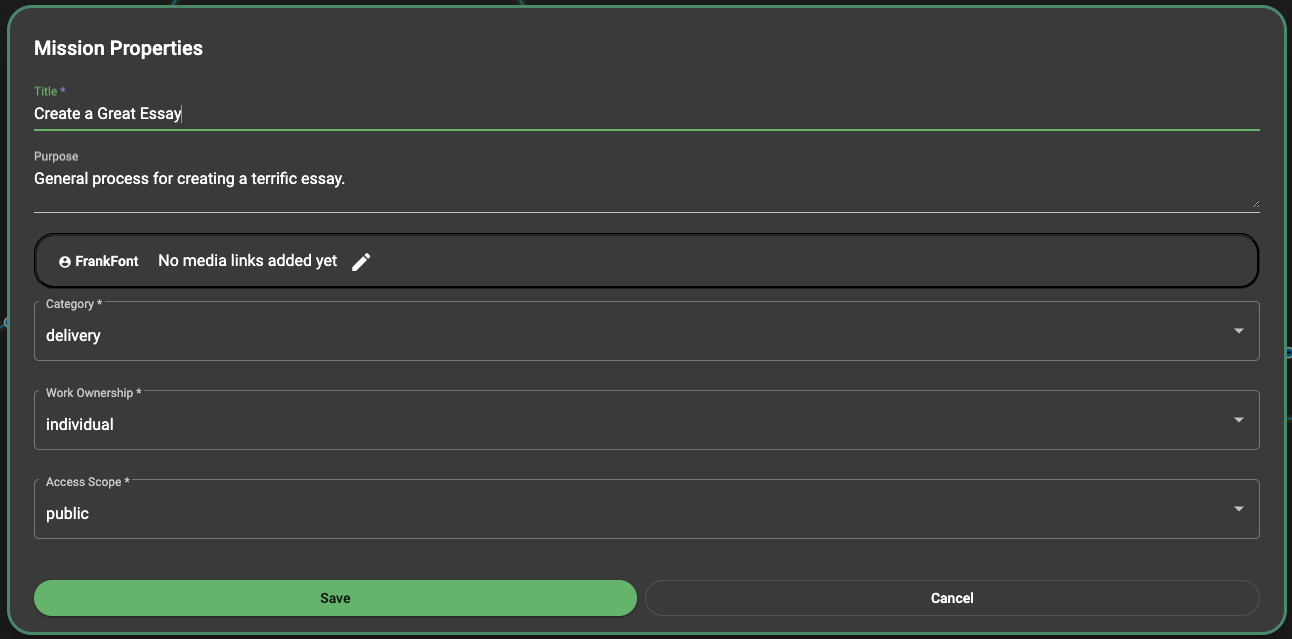
mission properties dialog

Properties explained

Title

The name that appears for this mission.

Purpose Provide a brief insight into the purpose of this mission.
Category Pick a category for this mission from the list of options in the dropdown.
Work Ownership Pick from one of the two available options.
  • individual: Pick this if the mission is intended for one person to use, or if it is simply to be an explanation of a process without assigning other people to the workitems.
  • group: Pick this if the mission is intended to be a collaborative effort. Users from a team can be assigned to individual workitems.
Access Scope Pick from one of the two available options.
  • team: Pick this if you want to restrict access to the mission to just those users that are members of the team. If you are the only user in the team, then you are the only user with access to the mission.
  • public: Pick this if you want to share this mission with everyone. Public missions can be edited by team members with edit rights in that team and can be viewed ( wihout any edit ability) by anyone having link to that mission. Share the link to a public mission with anyone on the internet and they can view that mission.

Editing properties of an existing mission

You will find a document properties icon next to the title of a mission you are editing. Click on that icon to view and change the properties of that mission.


Team Properties